60Ticks Tablet Time Clock runs on one Windows PC at your shop. Put an iPad, an Android tablet or a Chromebook by the
door (or on the shop floor) and employees tap their name to clock in, go to lunch, change jobs and clock out —
no logins, no app store, nothing to install on the tablet. Your time records stay on your own PC. No cloud account,
no monthly fee.
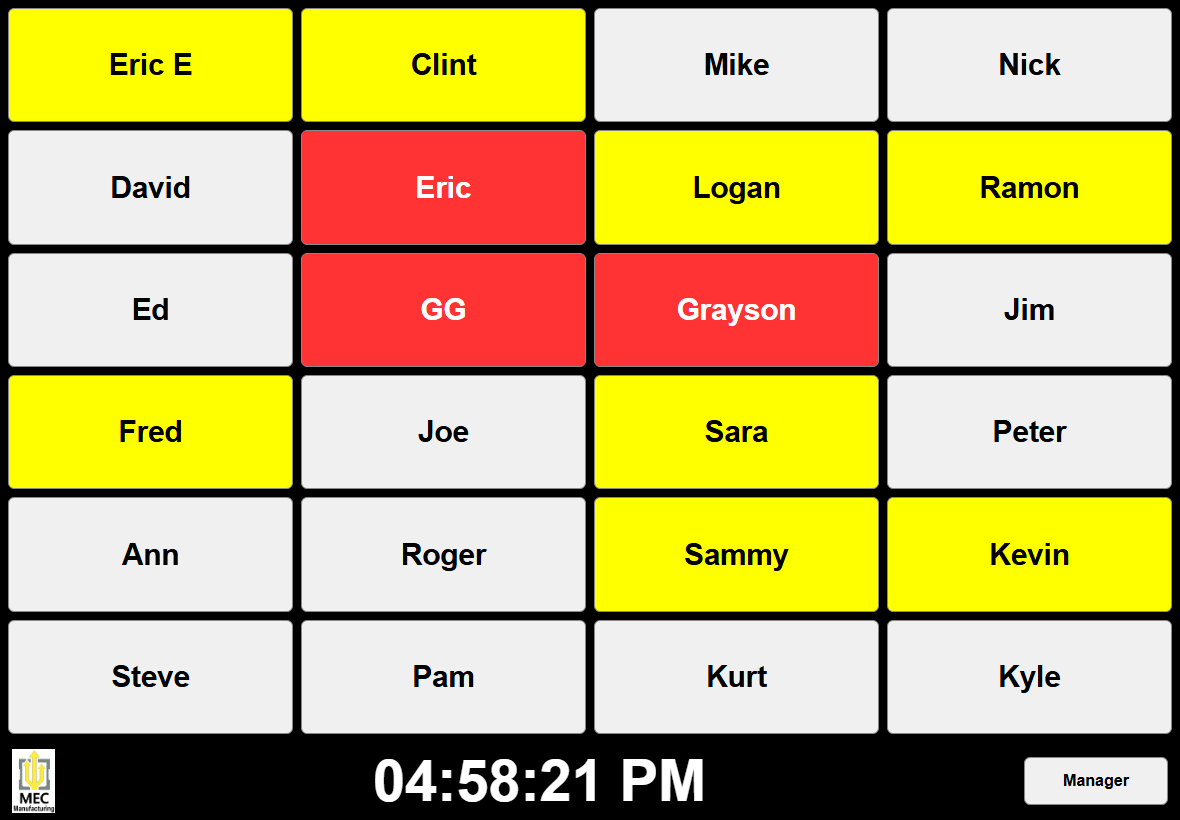
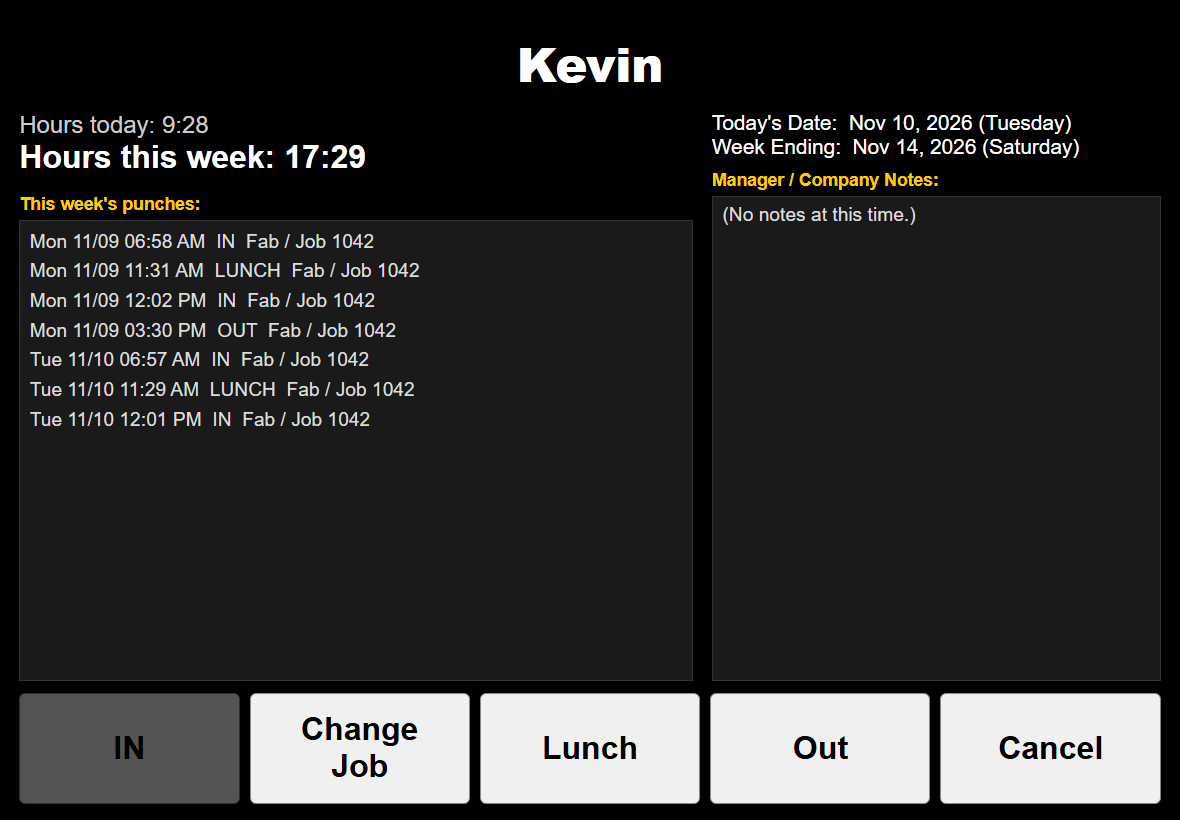
Tap your name, then Clock In, Lunch, Change Job or Clock Out — no passwords or badges to lose
Works in the web browser of an iPad, Android tablet, Chromebook, phone or Windows PC on your Wi-Fi
Use as many tablets as you like at the same time; every screen refreshes by itself
The PC’s clock stamps every punch, so a tablet with the wrong time can’t write wrong times
Two taps or two tablets can’t create a duplicate punch — each one is checked on the PC
Track time against jobs and departments — and the Lunch and Change Job buttons are optional, so a shop that doesn’t use them just turns them off
Live daily and weekly hours for each employee, and automatic overtime after 40 hours
Only the tablets you approve can clock anyone in — a phone that finds the address sees just a “waiting for approval” page, and you can remove a tablet at any time
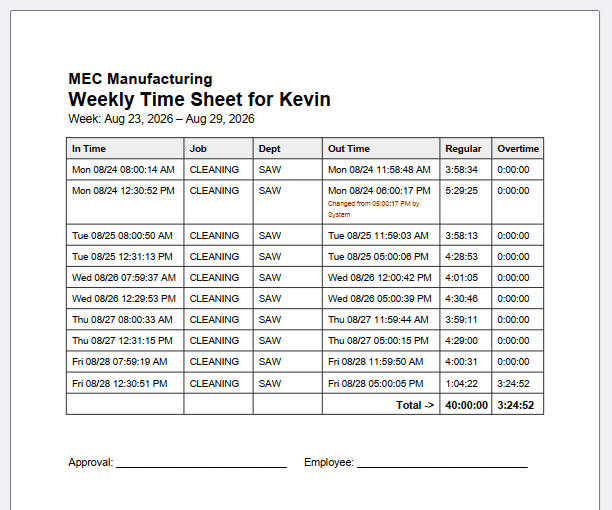
One Manager PIN, and the manager screens open only on the PC in your office — never on a tablet. Every time edit is logged and the original time is kept
Weekly PDF time sheets with approval and employee signature lines; print them one by one or batch-print them all on the PC’s printer
A tablet that loses the PC shows a clear red warning, so nobody thinks a punch was saved when it wasn’t
Daily automatic backup, plus a second folder of your choice (a USB drive or network folder)
Runs quietly in the background with a clock icon by the Windows clock — its menu has the tablet address, the QR code page, backups and more
Starts with Windows, restarts itself if it ever stops, and tells you if the PC’s address changes after a power outage
A built-in “Connect a Tablet” page with a QR code — point the tablet’s camera at it and you’re there
See it
The board — who’s in, at lunch, or out at a glance (click to enlarge)Tap your name — hours, punches, then one big button (click to enlarge)Weekly time sheet — edit trail and signature lines (click to enlarge)
How it works
1. Run the installer on one Windows PC that stays on during work hours (about 5 minutes) — it also lets tablets through the Windows Firewall for you
2. A “Connect a Tablet” page with a QR code opens on the PC — scan it with the tablet
3. The tablet shows a 4-digit code — on that PC, tap Manager → Approved Tablets, match the code and approve it
4. Still on that PC, add your employees, departments and jobs under Manager → Edit and set your Manager PIN
5. Your crew taps their name each shift; on Friday you print the week’s time sheets
Read the guide first
The download includes a short setup guide, and you can read it here before you try it:
Setup Guide (3 pages: installing,
connecting an iPad, Android tablet or Chromebook, keeping it running after a power outage, backups).
Your data stays with you
Your time records live in a folder next to the program on your own PC — nothing is sent to us or to any cloud. The
tablets only talk to that PC over your own network, so keep it on your private Wi-Fi and don’t forward its port
through your router to the internet.
Which 60Ticks time clock is right for you?
The 60Ticks Time Clock is the same tap-your-name clock for a touchscreen PC mounted by the door.
Tablet Time Clock is for shops that want one or more wireless tablets (or phones) instead. If people clock in from their
own phones and you need manager approval and ADP or QuickBooks payroll files, look at
60Ticks Network Time Clock.
Trial and license
Try everything free for 60 days. Tablet Time Clock never stops recording punches, trial or not — after
the trial a reminder appears now and then until you register. Buy once, use it forever — no subscription and no
per-employee or per-tablet fees. Your key arrives by email; enter your email and key under Manager > Edit > License.
This is a separate product from the desktop 60Ticks Time Clock and has its own key.
$99.99 — one-time purchase, unlocks the full version forever.
Requires Windows 10 or 11 (64-bit) on the PC that runs it; the PC must stay on and awake while people clock in. Each
tablet, phone or Chromebook needs only a current web browser (Safari, Chrome or Edge) on the same Wi-Fi network as that PC.
No internet connection is needed. To come back by itself after a power outage the PC needs to start the program with Windows
(the program offers this the first time it runs) and to sign in to Windows by itself — the guide shows how. If the
router gives the PC a new address, the program tells you and you scan the new QR code (or ask whoever manages your router to
reserve a fixed address for the PC). Installs to C:\TabletTimeClock and keeps your time records in its data folder, even if
you later update or uninstall. Current version 1.0, installer digitally signed by Clinton Smart.
Version history
Version 1.0 (current)
First release.
Why I built it
My touchscreen time clock has been running in a shop for years. Then someone called from New York and asked whether it could run on a tablet. A tablet by the door costs less than a touchscreen PC, and it can go wherever people actually work.
So I made a version that works the same way, but shows up in a web browser. I kept the two rules from the original: it never refuses to record a punch, and your records stay on your own computer.
Ask a question, suggest a feature, or tell us what isn’t working.
Why a form? Because the minute we post our email address, the spam bots find it too. Here’s the deal: a real person (me) answers as soon as I can, and after that we leave you alone unless you ask for more. Give it a try.
More 60Ticks tools
60Ticks Time Clock
A no-nonsense touchscreen time clock for small shops.