What an ORD file is (and why Mach won’t open it)
An ORD file is a waterjet part file: the cut path for a part, with the lead-ins, lead-outs and
a cutting-quality or speed level for each segment, written in the format the waterjet’s own
control understands. It is not G-code. Mach3 and Mach4 (and most other CNC
controls) run G-code — plain-text lines like G01 X2.5 Y1.0 F40. — so
an ORD file has to be translated before Mach can cut it.
That translation is worth doing. If a part has already been programmed for the waterjet, the hard work — the geometry, the lead-ins, the cut order — is already done. There’s no reason to draw it again for a laser, plasma table or router.
Three ways to get from ORD to G-code
- Redraw the part in CAM software. Export a DXF from the original drawing (if you still have it), bring it into a CAM program, and post G-code for Mach. It works, but you redo the lead-ins and cut order for every part.
- Use a CAM post-processor. Some CAM packages have posts that write to ORD for a waterjet. Going the other way — from an ORD you already have — is where people get stuck; the forums are full of unanswered questions about it.
- Convert the ORD file directly. A converter reads the ORD file and writes the same path as G-code. No original drawing needed, and the lead-ins and cut order come straight from the file.
The rest of this guide covers option 3, using our ORD-2-NC Converter.
Step by step
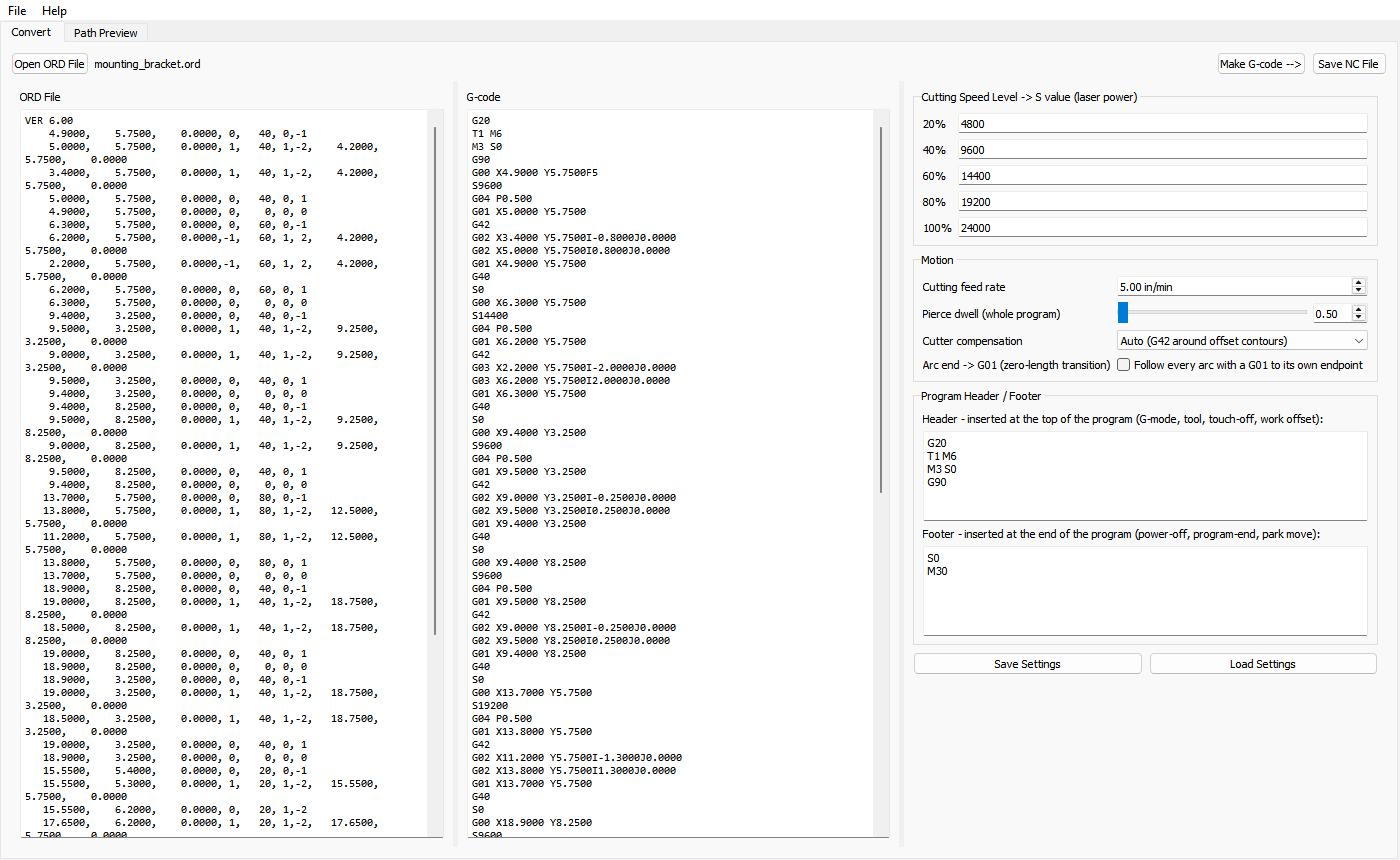
- Open the ORD file. The file and the G-code made from it appear side by side, so you can see exactly what each line becomes.
- Set your feed rate and speed values. The ORD file stores a speed level for each segment; you choose the cutting feed rate and the S value each level becomes. Add a pierce dwell if your machine needs time to get through the material before moving.
- Set the program header and footer once — G-mode, tool, work offset and program end — to match your machine. The program remembers them.
- Choose your program options. Line numbers (N5, N10…), a % at the start and end, an O program number, “S0 before every rapid move,” and a Retract Z height if you have a Z axis. Line numbers, % and the O number can be switched on or off at any time, and the G-code on screen updates immediately.
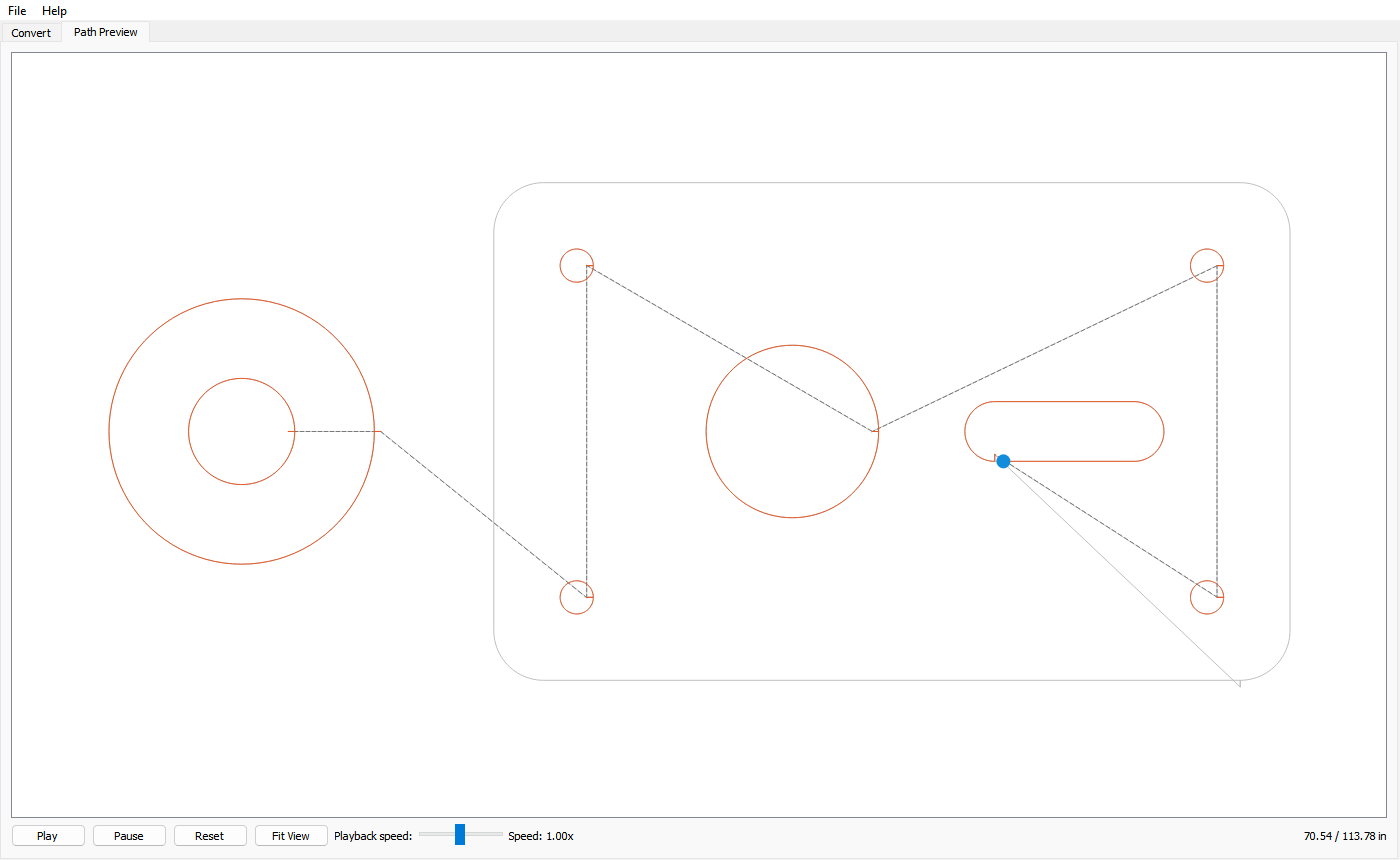
- Check the Path Preview. It plays back the cut path, with dashed lines for travel moves, so you can see the lead-ins and cut order before anything reaches the machine.
- Save the NC file and load it in Mach3 or Mach4. Mach doesn’t care about the file extension — .nc and .tap both work.
A real example: running waterjet parts on a Mach3 laser
This converter exists because of a laser. I built a Mach3 CNC laser and needed programs for it — and realized every part I wanted to cut already existed as a waterjet ORD file. So the ORD files get converted and the laser runs them.
The trick that makes it work: the laser’s power is controlled by a 0–10 volt signal, and in Mach3 that signal is the spindle-speed output. So the S value sets the laser power, and S0 drops the output to zero volts, which turns the beam off. With “S0 before every rapid move” switched on, the beam shuts off for every travel move and comes back at cutting power when the cut starts. No extra wiring or M-codes needed.
Things to check before you cut
- Units. Make sure your machine runs in the same units (inch or metric) your ORD files were drawn in.
- Cutter compensation. If you use compensation (G42), set your control’s tool or kerf diameter; if you don’t, switch compensation off in the converter.
- Decimal points. Every feed and speed is written with a decimal point (F10., S24000.). Mach reads it either way; some controls, like Haas, misread a whole number without the point.
- Air cut first. Run the first part with the beam, torch or spindle off and watch the path. It costs a minute and can save a sheet.
Common questions
Can Mach3 or Mach4 open an ORD file?
No. Mach runs G-code, which is a different format; the ORD file has to be converted first.
Do I need the original drawing?
No. The converter reads the cut path, lead-ins and speeds straight from the ORD file.
Will the G-code work on a laser or plasma, not just a waterjet?
Yes, if the machine runs Mach3 or Mach4 — see the laser example above for using the S value
as power.
Can I try it on my own files first?
Yes. The ORD-2-NC Converter is free for 60 days with
everything working. After that, a one-time $49.99 license keeps saving NC files — no
subscription.
Need to draw parts and make ORD files or G-code from scratch? See 60Ticks Waterjet Pro.
60Ticks is not affiliated with or endorsed by any machine or software manufacturer. Product and file-format names belong to their owners. Mach3 and Mach4 are products of their respective owner.